


PixelLab - Text on pictures
4.05.51K Reviews
App Specs
- Version
- 2.1.9
- Updated On
- License
- Free
- Downloads
- 100,000,000+
- Developer
- App Holdings
- Categories
- Photography
- Platform
- Android
Screenshots
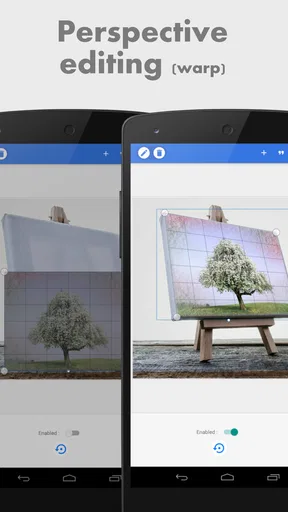
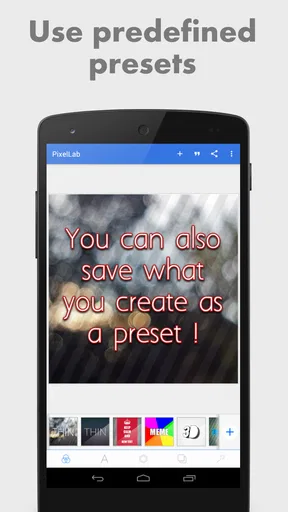
 Analysis by AppCompare
My first impression of PixelLab - Text on pictures is that it makes a specific creative job feel approachable: adding lettering and graphic touches to an image without needing to sit down at a desktop design program. The novelty is immediate, because a plain photo can become a caption card, a simple announcement or a playful meme in a few minutes. What matters more to me, though, is whether I would keep opening it once that first burst of experimentation passes. For people who regularly make text-led images, the answer can be yes; for someone who only wants to adjust lighting or crop photos, it is probably not the tool to keep reaching for.
Why the first week feels inviting
The first sessions are easy to fill with small experiments: try a new type style, give a title a shadow, add a sticker, then compare a flat caption with a dimensional one. That quick feedback is the app’s strongest early hook. Rather than learning a large editing suite before making anything, I can begin with one clear goal and discover the controls as I go. A blank canvas also makes sense when I want to build a graphic from scratch instead of decorating an existing photo.
There is a useful distinction between making a fast social post and designing something with several layers of text and decoration. A short caption can be handled quickly, while a more involved composition rewards slower adjustments. I would treat those as separate kinds of sessions: for a quick post, choose one message and keep the visual treatment restrained; for a more elaborate piece, work through the layout in stages and check that the words remain easy to read at phone size.
A practical first-week exercise is to make two versions of the same image, one with plain lettering and one with effects. Comparing them helps reveal when a shadow or outline actually improves legibility and when it merely adds noise. This is especially useful over busy backgrounds, where decorative text may look striking up close but become hard to read once the image is viewed as a small preview. The app encourages play, but restraint is often what makes the finished image feel deliberate.
How the editing workflow holds up
First things first, let's talk about how easy it is to jump into using PixelLab. As soon as you open the app, you’re greeted with a clean and intuitive interface. It doesn’t take long to figure out where everything is, which is a huge plus if you’re like me and get overwhelmed by cluttered screens.
The app is packed with features, but it doesn’t throw them all at you at once. You can start with a blank canvas or choose from a variety of templates. Whether you're sprucing up a selfie or creating a meme, PixelLab has got you covered.
Features That Stand Out
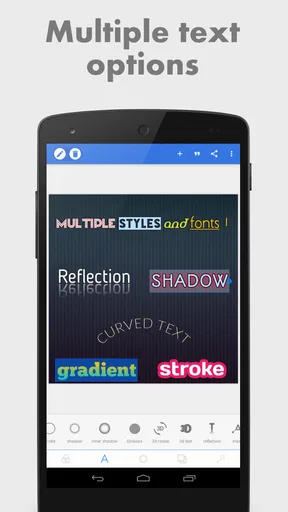
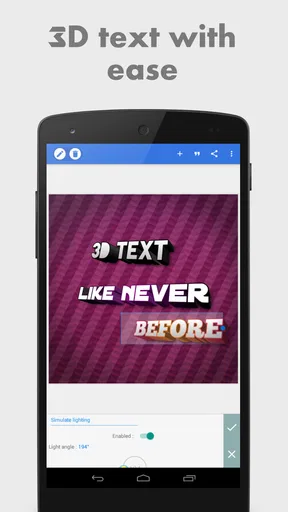
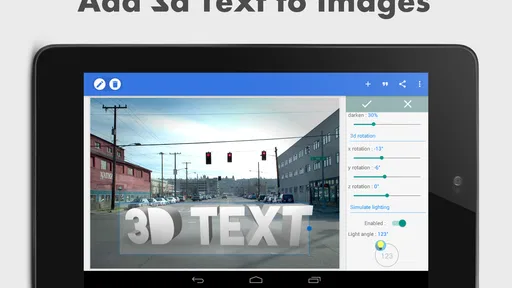
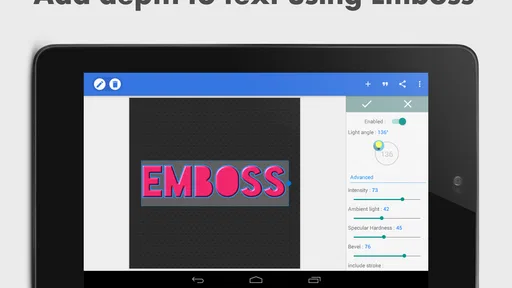
Let’s dive into some of the features that really make this app shine. The text editing feature is probably what you’ll use the most, and it’s incredibly versatile. You can add text in any font you can think of, and there are tons of customization options. From shadows and strokes to 3D text effects, the possibilities are endless.
Worth Reading Before You Choose

EA SPORTS FC Mobile 26 Is a Bigger Football Game, but It Takes Time

Flipboard Shows What News Apps Must Do Beyond the Feed

Switching to Android Auto Means Rethinking Your Driving Routine

Google Calendar Makes a Crowded Week Easier to Manage

Ludo King Makes the Most of the Minutes Between Plans

Baby Panda World Brings Quick Play to Modern Phones, but Its Game Library Feels Busy
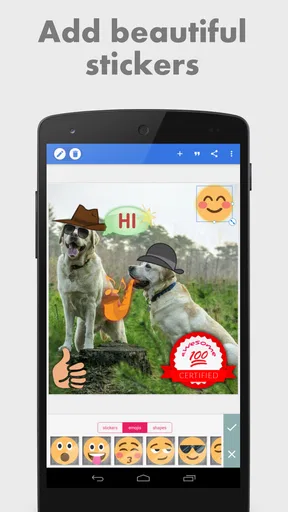
But wait, there’s more! The app also offers a wide range of stickers and shapes that you can add to your images. If you’re feeling creative, the drawing tool lets you doodle to your heart's content. And for those who love precision, the rulers and guides are a neat addition.
A habit, not just a novelty
The month-to-month value depends less on how many effects I can try and more on whether the app fits a recurring task. It can earn a place on my phone if I often prepare event notices, quote cards, simple labels, thumbnails or posts where the wording is as important as the picture. A small business owner making occasional sale graphics, for example, may find it handy to create a consistent style without opening a full desktop design workflow every time.
For a realistic everyday use, imagine taking a photo of a homemade cake before bringing it to a neighborhood gathering. I could add a short name or a note about the occasion, use a guide to keep the lettering aligned, and place a small decorative element away from the main subject. The useful part is not piling on effects; it is making the image informative at a glance. I would save a clean version before trying more elaborate treatments, so I can return to the simpler design if the experiment gets too busy.
That kind of repeatable workflow is where guides, shapes and text styling become more valuable than they first seem. A guide can help me keep a title in a similar position across several graphics, while a restrained set of colors and effects makes separate posts feel related. This is a practical way to build visual consistency even when I am not working from a formal brand kit. I would still check every finished image at its intended display size, since careful alignment on a large editing view does not guarantee that a small caption will remain readable on a phone.
Who it suits, and where another tool wins
One of the things I appreciate most about PixelLab is how it caters to both novices and seasoned designers. If you just want to add a quick caption to your photo, you can do that in seconds. But if you’re aiming for something more complex, the app provides all the tools you need.
Another thing to love is the community aspect. You can share your creations directly from the app, making it easy to show off your work to friends or on social media. Plus, seeing what others create can be a great source of inspiration.
Compared with a general photo editor, PixelLab makes more sense when the main job is placing and styling text, rather than correcting color, retouching a face or refining a photograph. If my goal is a polished image adjustment, I would use a photo-focused editor first, then bring the resulting picture into a text-design workflow. On the other hand, a full graphic-design suite may be a better choice when I need complex page layouts, a large set of reusable brand assets or detailed collaboration. PixelLab’s appeal is the narrower, quicker task: making a picture carry a clear message.
I would recommend it most to people who make occasional visual content and want room to experiment without starting with a complicated professional workflow. It is also a reasonable creative outlet for someone who enjoys typography, stickers and drawing directly on images. I would skip it if I rarely add words to photos, if I need advanced photo repair, or if I depend on a tightly managed design system for frequent work. The right alternative depends on the job: image correction for photography, broader layout tools for complex design, and PixelLab when text and simple graphic additions are the point.
Keeping the workload manageable
While the app is quite robust, there are a few areas where it could improve. Occasionally, the app can lag a bit when handling larger files or more intricate designs. It’s not a dealbreaker, but it’s something to be aware of if you’re working on a big project.
Also, some features require a bit of a learning curve. The 3D text feature, for instance, is powerful but can be tricky to master at first. However, with a little patience, you'll be crafting professional-looking text in no time.
Those limitations affect how I would use it over time. For a small graphic, I can experiment freely; for a large image with many detailed elements, I would keep the design simpler and avoid making every adjustment at once. A useful habit is to settle the wording and basic placement before adding shadows, strokes or dimensional effects. That order reduces rework: if the message changes late, I do not have to reconsider a complicated stack of decoration around it.
The learning curve also means that not every feature needs to become part of my routine. I would first get comfortable with straightforward text placement, then add one new treatment at a time. In particular, 3D lettering can be eye-catching, but it can also compete with the message. I would reserve it for a short title or a playful graphic, not a long caption where clarity matters more than depth.
For repeated work, I would keep a simple mental checklist: Is the text readable against the photo? Are the edges and spacing intentional? Does the sticker support the message, or distract from it? These checks are more useful than adding another effect just because it is available. They help make the app’s flexibility sustainable rather than turning every small post into a long editing session.
What makes it worth returning to
PixelLab is a free photography app from App Holdings, and its broad reach is reflected in over 100 million installs. It holds a 4.0 average from around 558,000 ratings, which gives a prospective user a sense of its established audience without telling the whole story of whether it fits a particular workflow. The content rating is Everyone. It was released on April 10, 2015, and version 2.1.9 lists Android 6.0 as the minimum operating system. Optional in-app purchases are priced at $2.99 per item, so the basic decision is whether its everyday text-and-image tasks are useful to you before considering any paid extras.
The ongoing cost in attention is more important than the novelty of the tools. If I use it for a recurring handful of jobs, I can develop a quick approach and get value from it without exploring every control. If I open it only to test effects, the app may remain entertaining but not essential. That is not a flaw so much as a question of fit: a tool earns lasting space when it solves a task I actually repeat.
For someone wondering whether it is suitable for a first editing app, I would say yes if the goal is to add words and simple decorations to pictures. The controls are approachable, and the more advanced text effects give room to learn. If the goal is broad photo editing, I would start elsewhere and use PixelLab only when a caption, title or graphic treatment is needed. That distinction sets realistic expectations and avoids mistaking a focused design tool for an all-purpose photography suite.
Final Thoughts
In the world of mobile photo editing, PixelLab stands out as a versatile and user-friendly app. Whether you’re looking to add a simple caption or create an elaborate design, it offers all the tools you need to bring your vision to life.
If you’re someone who loves to play around with images, or if you’re looking to elevate your social media game, I’d definitely recommend giving this app a try. It's a creative playground that can spark a lot of joy—and maybe even a little bit of artistic flair you didn’t know you had.
So go ahead, download PixelLab and let your creativity run wild. You might just find yourself spending hours crafting the perfect photo, and loving every minute of it.
My long-term verdict is positive, with a clear caveat: I would keep it for text-focused image work, not as my one-stop photo editor. The app’s strongest recurring value comes from turning a picture into a readable, finished message with little setup. It is easy to enjoy in the first week, but its lasting place depends on whether I regularly make those graphics. If I do, its mix of straightforward editing and room to refine typography earns the space; if not, the novelty will likely fade, and a simpler photo tool will be more useful day to day.
Pros
- User-friendly interface for easy navigation.
- Wide variety of fonts and styles available.
- Allows 3D text creation for unique designs.
- Supports import of custom fonts and images.
- Regular updates with new features and fixes.
Cons
- Ads can be intrusive during editing.
- Limited export options in free version.
- Occasional crashes on older devices.
- Advanced features require in-app purchases.
- No direct social media sharing integration.
FAQs for PixelLab - Text on pictures
What features does PixelLab offer for text editing?
PixelLab provides a comprehensive suite of text editing tools that allow users to add and customize text on images. Features include 3D text, text effects, shadows, reflections, and over 100 fonts. Users can also adjust text size, color, and alignment to fit their creative needs.
Is PixelLab suitable for beginners in graphic design?
Yes, PixelLab is user-friendly and designed to cater to both beginners and experienced graphic designers. The intuitive interface allows users to easily navigate and utilize various tools, making it an excellent choice for those just starting to explore text and image editing.
How do I add images and stickers in PixelLab?
In PixelLab, adding images and stickers is straightforward. Users can import images from their device's gallery or use built-in shapes and stickers. The app offers a variety of customization options, allowing you to layer, resize, and position your images and stickers as desired.
Does PixelLab support image export in high resolution?
Yes, PixelLab supports exporting images in high resolution. Users can save their edited images as JPEG or PNG files with customizable quality settings. This ensures that your creations maintain their clarity and detail, whether for digital use or printing.
Are there any in-app purchases in PixelLab?
PixelLab is free to download and use, but it does offer in-app purchases. These purchases include additional features and tools that enhance the app's functionality. While the basic features are robust, the premium options provide more advanced capabilities for users seeking extended creative options.


